
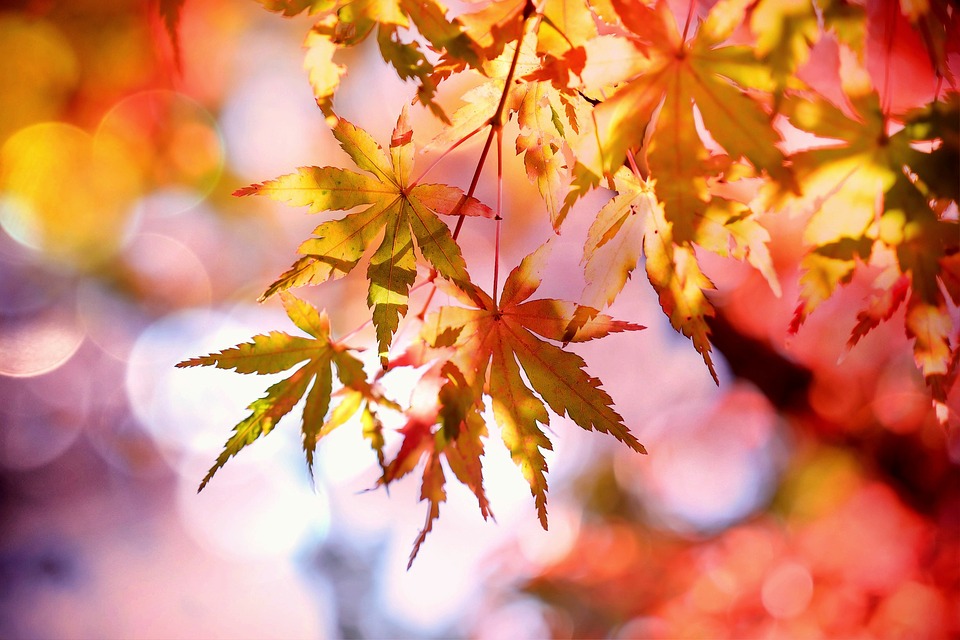
Would you like to know how to blur the background in a photo using an editing application? A blurred background can make your picture look professional, much like the beautiful bokeh effect typically seen from DSLR cameras.
Unfortunately, not every camera, especially mobile phone cameras, can create that natural blur effect. It often makes photos look flat and less appealing. The good news is, you can still achieve the effect through editing.
The only challenge with editing is that you need to put in extra effort to select the background correctly and adjust the blur level so that the photo looks natural. But don’t worry, this guide will show you how to blur the background in a photo step by step using simple tools.
Why Blur the Background in a Photo?
Blurring the background is more than just making your image look artistic; it also enhances the overall aesthetic. It helps to:
- Draw attention to the main subject.
- Add depth and a professional look.
- Mimic DSLR-like photography with a smartphone.
If you’re running a business, knowing how to blur the background in a photo can also improve your product images. Clean, professional visuals will help you stand out on e-commerce or social media.
How to Blur the Background in a Photo using an Editing Application
Here are three editing applications that make it easy to blur the background and create a stunning bokeh effect:
1. Instagram Editing
Many people edit their photos directly on Instagram before uploading. Did you know the app has a feature that allows you to blur the background?
The feature is called vignette, where you can choose either circular or linear blur. However, it’s not very precise; it blurs everything within the selected shape.
For example, if you take a selfie and use the circular vignette, the blur will surround your face, but some parts of the background may remain sharp. It’s a quick option, but not the most accurate if you want complete control over the process.
Read also: How to Blur Part of a Photo on Mobile Everyone Should Know.
2. Adobe Photoshop
If you want precision, Adobe Photoshop is the best choice. With Photoshop, you can select exactly which parts of the image you want to blur.
Here’s how to blur the background in a photo with Photoshop:
- Duplicate the layer of your image.
- Go to Filter > Blur > Gaussian Blur.
- Start with a radius of 50 and adjust until it looks natural.
Photoshop also offers other blur filters that you can experiment with, such as Lens Blur or Field Blur, providing more flexibility to create a DSLR-like effect.
Read also: How to Fix Blurry Photos in an Easy Way.
3. PicsArt
For mobile users, PicsArt is one of the most recommended apps. It offers more options compared to Instagram’s built-in tools.
Although it doesn’t provide as much precision as Photoshop, PicsArt still allows you to blur specific areas, making it easier to highlight your subject. It’s a practical choice if you want to edit quickly on your phone.
Extra Tips: How to Blur the Background in a Photo
- Use a plain background when shooting: This makes editing easier later.
- Experiment with different levels of blur: Too much blur can look fake, so adjust carefully.
- Combine with brightness and contrast edits: This further enhances the subject’s visibility.
By following these tricks, you’ll master how to blur the background in a photo and achieve results that look natural and professional.
Let Dropicts Help With Your Editing Needs
That’s all for our guide on how to blur the background in a photo, similar to the bokeh effect. Simple. With the right tools, anyone can make an image appear as if it were taken with a high-end camera.
But if you don’t have the time or want professional results, Dropicts can help. As an experienced photo retouching service, we offer comprehensive background editing, photo retouching, and design solutions tailored to meet the needs of individuals and businesses.
Contact us through our website and let our experts turn your images into stunning visuals that capture attention.
Image Source:
peakpx.com
