
Photoshop performance settings can make a huge difference in how fast and smoothly your editing workflow feels. Whether you manage a creative team, run an ecommerce business, oversee marketing campaigns, or handle high-volume photography projects, slow editing performance wastes time and hurts productivity.
For many professionals, Photoshop is one of the most important tools in the workflow. But even powerful computers can feel sluggish if the settings are not optimized correctly.
The good news? You do not always need expensive hardware upgrades. In many cases, changing a few Photoshop performance settings can dramatically improve speed, responsiveness, and stability.
Why Photoshop Performance Settings Matter
Photoshop handles large image files, complex layers, AI-based tools, and heavy rendering tasks every day. If your settings are poorly configured, you may experience:
- Slow brush lag
- Delayed layer previews
- Freezing during exports
- Long loading times
- Random crashes
- Poor multitasking performance
For business leaders and creative managers, this becomes more than a technical issue. Slow editing affects delivery timelines, campaign execution, ecommerce product launches, and overall operational efficiency.
Optimizing your Photoshop performance settings helps teams work faster while reducing frustration during production.
Best Photoshop Performance Settings to Change First
Optimize Memory Usage
One of the most important Photoshop performance settings is memory allocation.
By default, Photoshop may not use enough RAM efficiently. Increasing memory usage allows the software to process large files more smoothly.
To adjust this setting:
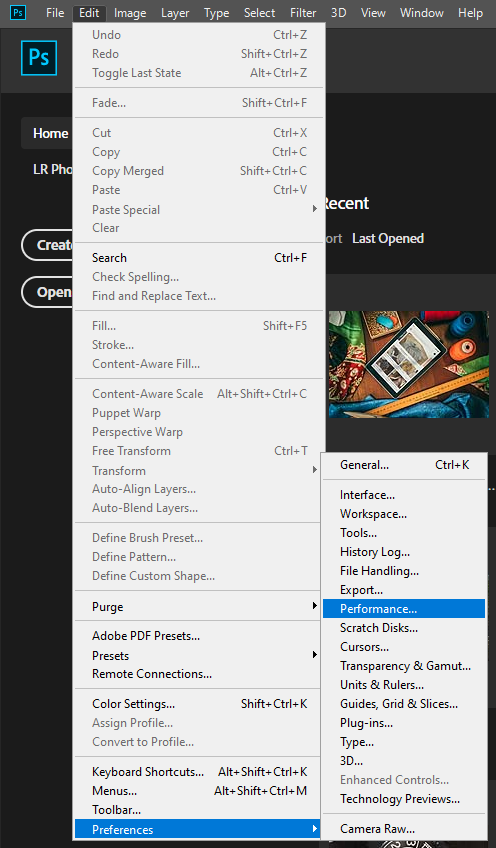
1. Open Photoshop
2. Go to Edit > Preferences > Performance
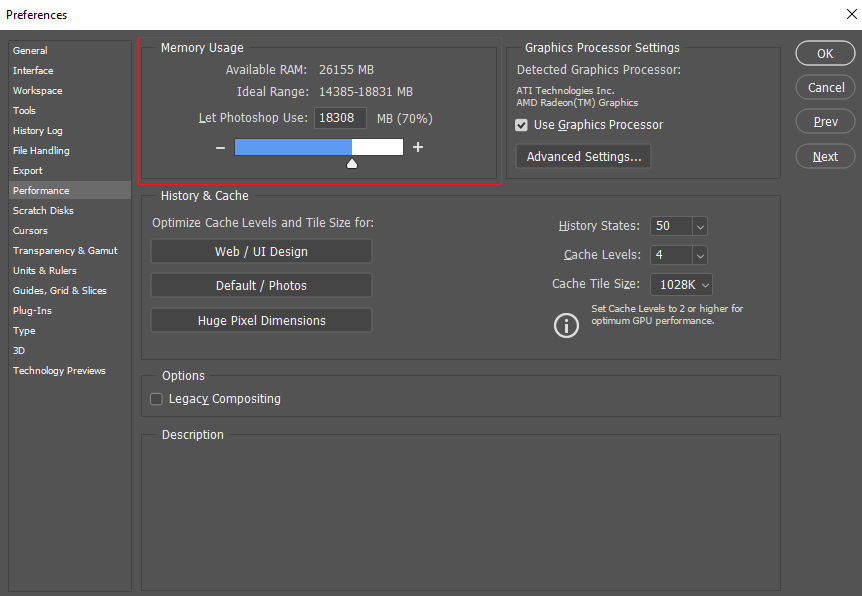
3. Find the Memory Usage section
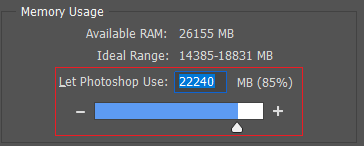
4. Allocate around 70% to 85% of available RAM
Avoid using 100% because your operating system still needs resources to run properly.
For teams working with RAW photography, ecommerce product images, or large marketing assets, properly allocated RAM can noticeably reduce lag.
Adjust Graphics Processor Settings
Modern Photoshop features heavily rely on GPU acceleration. AI tools, smooth zooming, filters, and canvas rendering all depend on your graphics processor.
Inside the Performance settings menu:
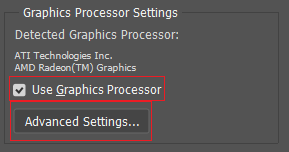
- Enable Use Graphics Processor
- Click Advanced Settings
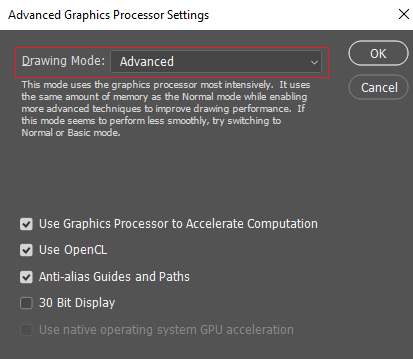
- Set Drawing Mode to Advanced
It can significantly improve responsiveness, especially for users working with multiple artboards or high-resolution visuals.
If Photoshop becomes unstable after enabling GPU acceleration, update your graphics drivers first, then turn off the feature.
Improve Scratch Disk Performance
Scratch disks act as temporary storage when Photoshop runs out of RAM.
A poorly configured scratch disk is one of the most common reasons Photoshop slows down.
For the best results:
- Use an SSD instead of an HDD
- Keep at least 100GB of free space
- Avoid using your operating system drive if possible
To configure scratch disks:
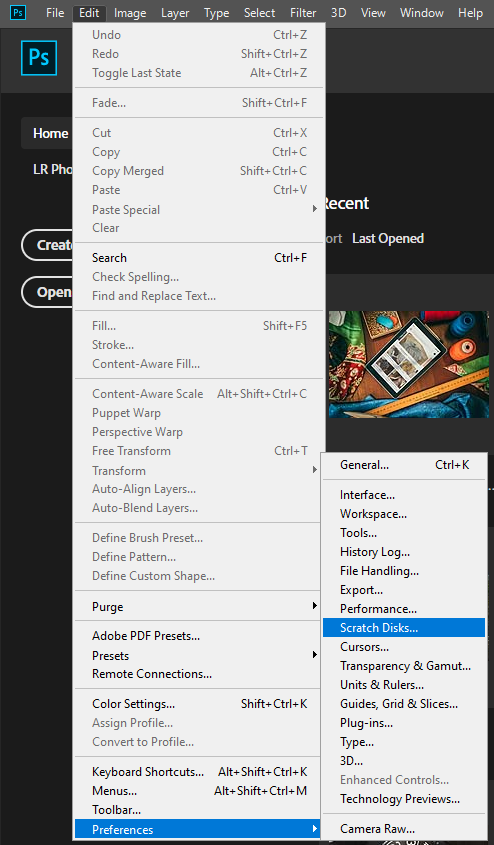
1. Open Preferences > Scratch Disks
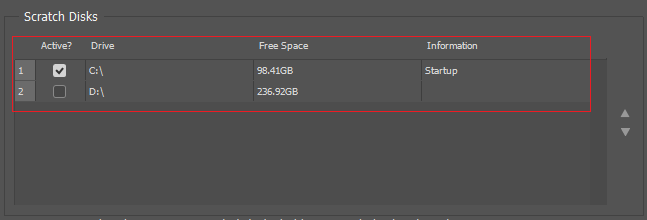
2. Select the fastest available SSD
3. Restart Photoshop
For creative agencies and ecommerce teams handling thousands of images, SSD-based scratch disks can dramatically improve performance.
Optimize History States
Photoshop saves every editing step in memory. While useful, excessive history states consume large amounts of RAM.
You can optimize this setting by:
1. Going to Preferences > Performance
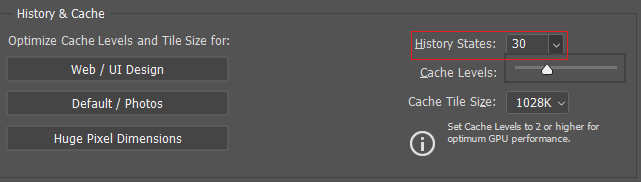
2. Lowering History States from 50 to around 20–30
It reduces memory usage while still providing enough undo flexibility for most workflows.
For production-heavy teams, balancing performance and editing flexibility is essential.
Disable Unnecessary Background Features
Some Photoshop features run in the background and unnecessarily consume resources.
You can improve speed by disabling:
- Auto-recovery intervals that are too frequent
- Unused plugins
- Home screen loading
- Cloud syncing is not needed
- Animated zoom
These small adjustments often create a smoother overall editing experience.
Advanced Photoshop Performance Tips
Keep Photoshop Updated
Adobe regularly releases performance improvements and bug fixes.
Running outdated versions can cause compatibility issues, crashes, and slower performance.
Always keep:
- Photoshop updated
- GPU drivers updated
- Operating systems updated
It is especially important for companies managing multiple creative workstations.
Manage Plugins Carefully
Third-party plugins can significantly impact Photoshop’s performance.
Many teams install unnecessary extensions that continue running silently in the background.
Audit plugins regularly and remove anything that is:
- Outdated
- Rarely used
- No longer compatible
A lean Photoshop setup usually performs much better than an overloaded one.
Optimize File Handling
Large PSD files with hundreds of layers can slow down even high-end systems.
Best practices include:
- Merging unused layers
- Using linked smart objects carefully
- Compressing large assets
- Archiving old projects
Efficient file organization improves both Photoshop performance and team collaboration.
Read also: Learn Photoshop for Beginners
Best Hardware Setup for Photoshop
Even with optimized Photoshop performance settings, hardware still plays an important role in editing speed and overall workflow efficiency.
For professional use, especially in photography, ecommerce, marketing, and creative production, a strong hardware setup helps Photoshop handle large files, AI tools, and complex edits more smoothly.
Here are the recommended hardware specifications for better Photoshop performance:
- RAM: At least 32GB for smoother multitasking and large file editing
- Storage: NVMe SSD for faster loading, saving, and scratch disk performance
- GPU: Dedicated graphics card with at least 8GB VRAM for AI tools and rendering
- CPU: Modern multi-core processor for faster processing and exports
- Monitor: Color-accurate IPS display for consistent visual results
Photography studios, ecommerce businesses, and marketing teams that work with high-resolution images daily will notice major productivity improvements with the right hardware setup.
Still, before investing in expensive upgrades, optimizing your Photoshop performance settings should always be the first step.
Common Mistakes That Slow Photoshop Down
Many users unintentionally create performance issues through poor workflow habits.
Here are the most common mistakes:
Opening Too Many Files at Once
Large PSD files consume significant memory. Keeping unnecessary projects open reduces responsiveness.
Ignoring Cache Settings
Photoshop cache levels affect rendering speed.
For high-resolution image editing:
- Use higher cache levels
- Use larger cache tile sizes
Running Too Many Apps Simultaneously
Video conferencing tools, browsers with dozens of tabs, and background apps can quickly drain system resources.
Encourage teams to close unused applications during intensive editing sessions.
Using Nearly Full Storage Drives
SSDs slow down significantly when storage space becomes too limited.
Maintain at least 20% free storage for optimal performance.
Final Thoughts
Optimizing Photoshop performance settings is one of the easiest ways to improve editing speed without immediately upgrading hardware.
For marketing teams, ecommerce businesses, photography studios, and creative operations leaders, faster Photoshop performance means:
- Better productivity
- Faster content delivery
- Smoother collaboration
- Reduced downtime
- Improved creative efficiency
Small configuration changes can produce surprisingly large improvements in daily workflows.
If Photoshop feels slow, laggy, or unstable, start by optimizing memory allocation, GPU settings, scratch disks, and background processes first. In many cases, that alone can transform your editing experience.
Whether you need ecommerce photo retouching, background removal, ghost mannequin services, or bulk image editing, Dropicts can help streamline your visual production workflow while maintaining high quality and fast turnaround times.
FAQ
What are the best Photoshop performance settings?
The best Photoshop performance settings include optimizing RAM allocation, enabling GPU acceleration, using SSD scratch disks, and reducing unnecessary history states.
How much RAM should Photoshop use?
Adobe generally recommends allocating around 70% to 85% of available RAM for Photoshop.
Does GPU improve Photoshop performance?
Yes. GPU acceleration improves zooming, AI tools, rendering, filters, and overall canvas responsiveness.
Why is Photoshop suddenly slow?
Common reasons include low storage space, outdated GPU drivers, excessive history states, large PSD files, or overloaded scratch disks.
Is SSD important for Photoshop?
Yes. SSDs significantly improve scratch-disk performance, file-loading times, and overall responsiveness compared to traditional HDDs.
Image Source: unsplash.com
