
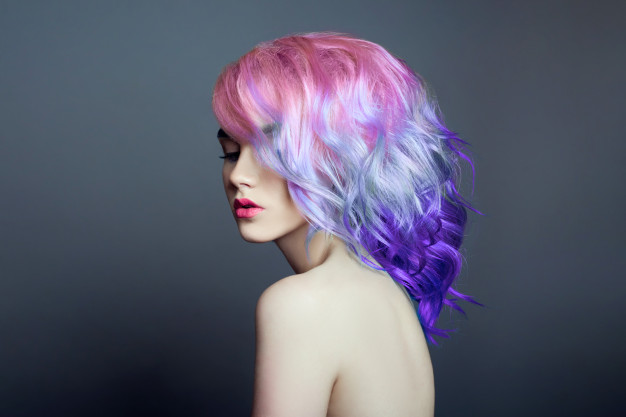
Change Hair Color in a Photo with These 3 Powerful Techniques
Trying a new hair color can be thrilling. Whether you’re dreaming of a bold red, subtle highlights, or pastel shades, experimenting with colors lets you transform your look instantly. But what if you’re not ready to commit to a salon visit or permanent dye? The good news is, you can change hair color in a photo with just a few clicks, all from the comfort of your computer or smartphone.
In this guide, we’ll explore three powerful and straightforward methods for change hair color in a photo using Adobe Photoshop and mobile apps. These techniques are perfect for fashion brands, beauty influencers, online store owners, or anyone who wants to visualize a fresh new style without touching a single drop of hair dye.
Why Change Hair Color in a Photo?
Before diving into the tools, let’s talk about why this skill is so valuable:
- Test Before You Commit – See how you’d look with a new hair color before making a permanent change.
- Creative Freedom – Perfect for photoshoots, artistic projects, or themed social media posts.
- Marketing and Branding – Beauty brands and e-commerce stores can utilize it to showcase variety without needing multiple models or photo shoots.
- Personal Confidence Boost – A slight change in hair color can completely alter your vibe, giving you the confidence to try it in real life.
1. Change Hair Color in a Photo Using Photoshop
Adobe Photoshop is one of the most powerful and precise tools for changing hair color in a photo. It allows you to recolor hair while preserving natural texture, highlights, and shadows, making the result look incredibly realistic.
Step-by-Step Guide:
- Select the Hair – Use the Quick Selection Tool to detect hair areas automatically. For a more precise selection, manually paint over the hair using the Brush Tool.
- Refine the Edges – Go to Select and Mask, then adjust the Smart Radius to around 1.5–2.5 pixels. It helps capture individual strands for a more natural look.
- Apply the Color – Add a Hue/Saturation Adjustment Layer or use Color Balance. Press Ctrl + Alt + G (Windows) or Cmd + Option + G (Mac) to apply changes only to the hair selection.
- Make It Look Real – Set the blending mode to Soft Light or Hue for subtle results. Increase saturation for bold colors like blue, purple, or pink, but don’t overdo it.
- Fine-Tune Details – Use the Eraser Tool with a soft brush to clean up areas where color may have spilled outside the hair.
Best for: Professional photographers, retouchers, and anyone who wants complete control over the recoloring process.
2. Use Hair Color Changing Apps
Not everyone is comfortable with Photoshop, and that’s okay! Many mobile apps allow you to change your hair color in a photo in seconds, with realistic results and a minimal learning curve.
Top Apps to Try:
- YouCam Makeup – Known for its realistic hair coloring and virtual makeup try-on features.
- Hair Color Changer – Simple interface with natural and bold shade options.
- Hair Color Studio – Offers over 20 hair colors that adapt to your face and lighting.
- Hair Color Dye – Great for gradient or ombre effects.
- Hairstyle Makeover – Perfect for trying both hairstyles and hair colors.
Why use apps?
- Quick and easy for beginners.
- No expensive software needed.
- Great for instant social media content.
Best suited for: beauty influencers, casual users, or anyone seeking a fun and quick way to change their hair color without needing complex tools.
Read also: Having a photoshoot for your jewelry product? Read this!
3. Change Hair Color for Commercial Use
If you’re working in fashion photography, altering a model’s hair color in photos can have a significant visual impact. It helps highlight makeup, clothes, or accessories more effectively. It is beneficial for:
- Makeup brands
- Hair dye products
- E-commerce lookbooks
- Social media campaigns
Pro Tips for Change Hair Color in a Photo
- Duplicate the Original Layer – Always keep the untouched photo in case you need to revert to it.
- Keep the Texture – Over-editing can make hair look flat and fake.
- Match the Lighting – Hair color should complement the lighting in the photo for a realistic effect.
- Experiment with Multiple Shades – Try a few variations before deciding on the final look.
Final Tips
- Always duplicate the original layer before editing to preserve your source.
- Avoid making the hair look too artificial; maintain its texture.
- Practice with multiple lighting and skin tones to get better results.
Final Thoughts
Learning how to change hair color in a photo opens up endless creative possibilities, whether you’re experimenting with your style, creating content for social media, or producing high-quality visuals for a brand.
From Photoshop’s precision to the simplicity of mobile apps, there’s a method for everyone. You need flawless, salon-level results without the effort. In that case, professional photo retouching services, such as Dropicts, are here to help.
Change hair color in a photo is more than just a visual tweak; it’s a way to explore creativity, enhance branding, and boost your confidence before making a real-life transformation.
Contact us today to achieve vibrant, realistic hair color edits that make your images truly stand out!

Image Source:
pinterest.com
