You spend an hour getting a product photo just right. The white balance is perfect, the fabric color matches the real thing exactly, and it looks flawless on your screen. You upload it. Then you open your own listing on your phone later that night, and the color is off. Not ruined, just slightly wrong in a way you can’t quite explain.
Here’s the twist most people never figure out: your editing skill was never the problem. Somewhere between your monitor and your customer’s screen, the colors got lost in translation, and the culprit almost always has a name, sRGB.
It sounds technical, but it’s actually one of the simplest and most useful things you can learn if you edit or sell photos online. Once you understand it, those unexplained color shifts stop being a mystery, and you get to fix them for good.
What Is sRGB, In Simple Terms
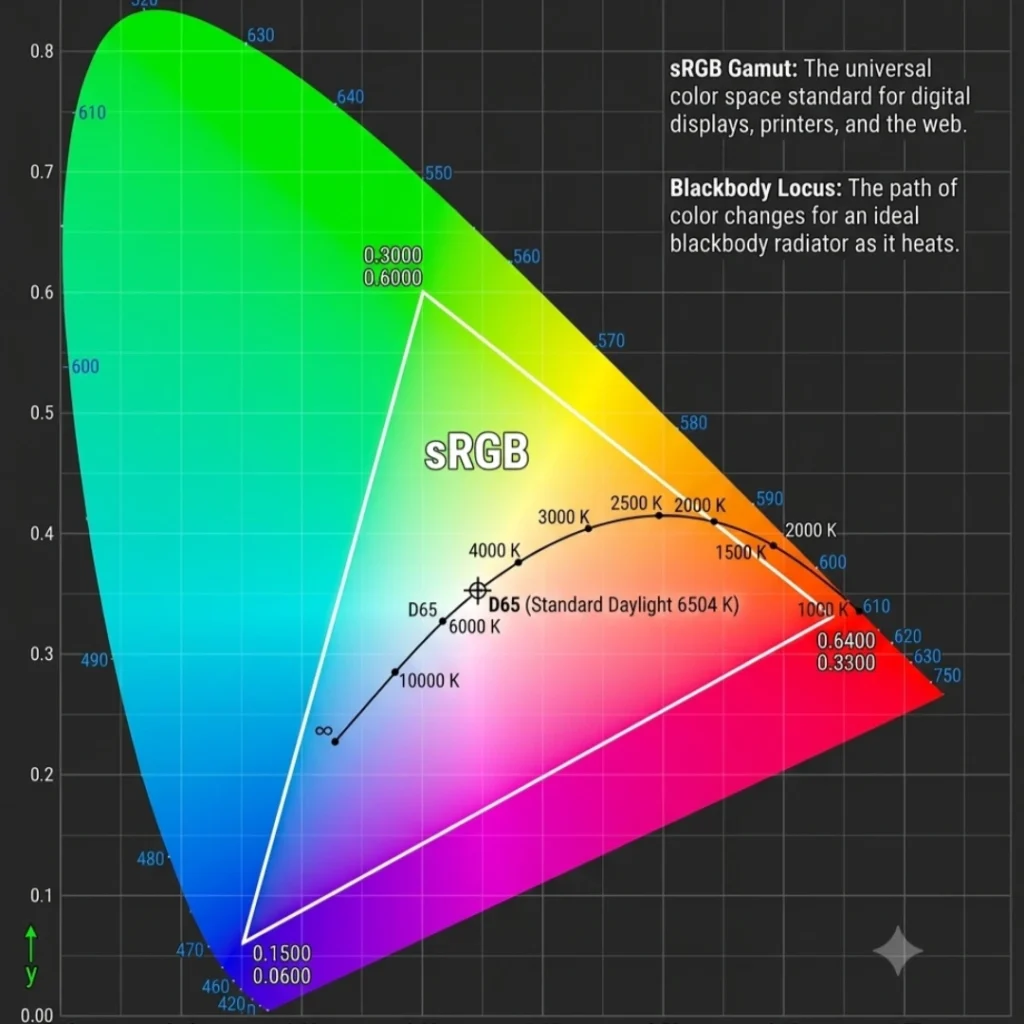
sRGB stands for Standard Red Green Blue. It’s a color space, which is basically a defined set of rules for how red, green, and blue light should combine to produce every other color in an image.
Think of it like a shared language for color. Without a shared language, a camera, a monitor, a phone screen, and a printer could all interpret the same image data differently, and the colors would shift from device to device. It was created so that most screens and devices agree on what “red,” “green,” and “blue” actually mean, and how bright each one should be.
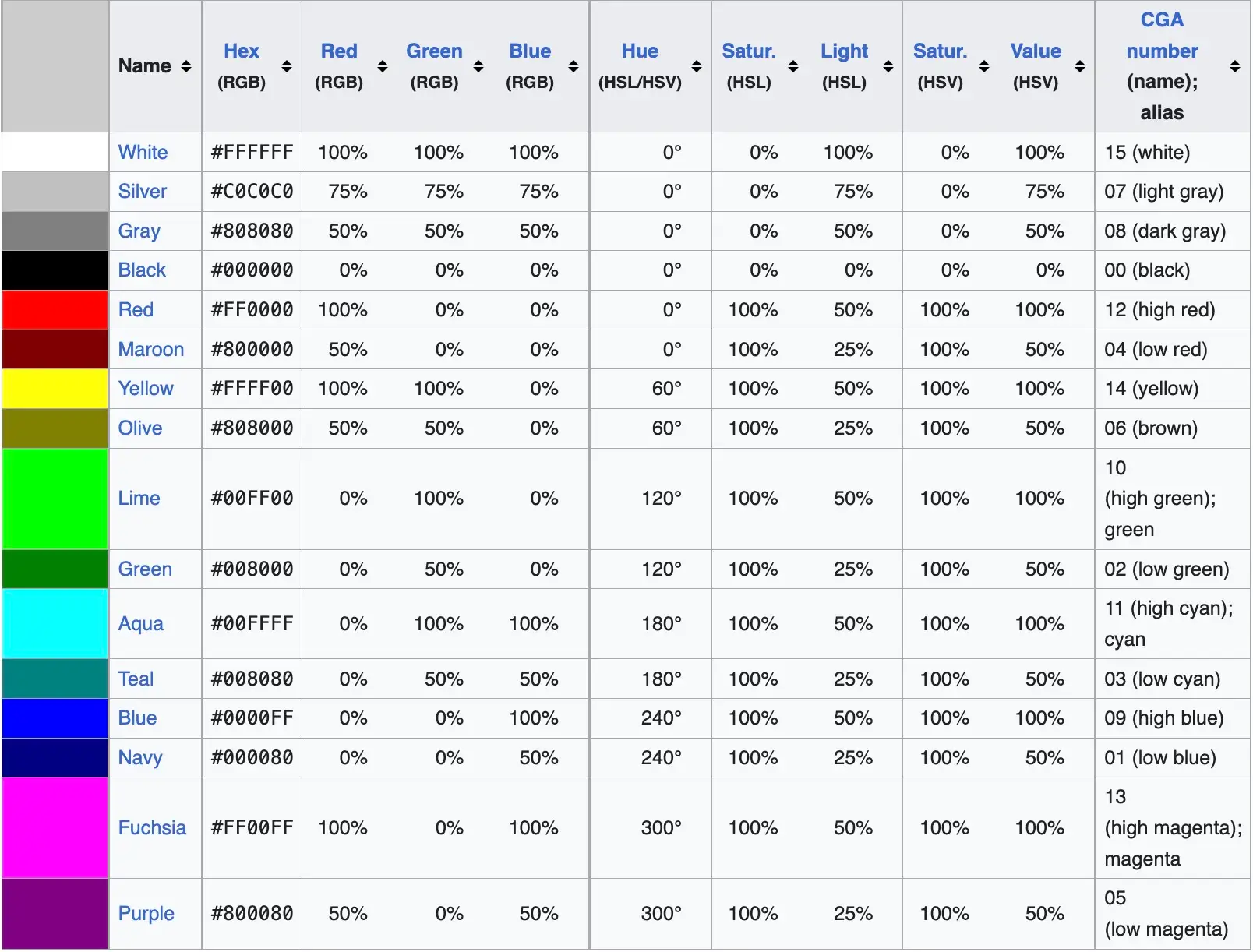
According to Wikipedia, the standard hexadecimal code (HEX) for the sRGB and other base color are:
It was developed by HP and Microsoft in 1996 and later became an official standard through the International Electrotechnical Commission (IEC), under the name IEC 61966‑2‑1. Today, sRGB is the default color space assumed by web browsers, most cameras, most monitors, and nearly every social media platform and marketplace.
Why sRGB Exists
Before it became standard, there was no reliable way to guarantee that an image would look the same on two different screens. A photo could look warm and accurate on the monitor it was edited on, then appear washed out, oversaturated, or shifted in hue on someone else’s device.
HP and Microsoft proposed sRGB as a solution built around three things:
- A defined set of red, green, and blue primaries (the base colors used to build every other color)
- A defined white point, called D65, which represents average daylight
- A gamma curve of about 2.2, which controls how brightness is distributed from dark to light
Because these three elements are fixed, any device that follows the sRGB standard will interpret color values the same way. That’s the entire point of a color space: consistency.
How sRGB Compares to Other Color Spaces
sRGB isn’t the only color space in use. If you edit photos seriously, you’ve probably come across Adobe RGB and DCI‑P3 as well. Here’s how they generally compare:
| Color Space | Best Used For | Color Range | Where It’s Common |
| sRGB | Web, social media, ecommerce, everyday photography | Smaller, but reliable | Nearly all monitors, phones, browsers |
| Adobe RGB | Professional printing, magazine and fine art photography | Wider, especially in greens | Professional photo editing monitors |
| DCI‑P3 | HDR video, film, high end displays | Wider than sRGB, similar to Adobe RGB | Modern smartphones, HDR TVs |
The tradeoff is straightforward. Adobe RGB and DCI‑P3 can capture a broader range of colors, which sounds like an advantage, but most everyday screens can’t actually display that extra range. So if your image is edited in Adobe RGB and then viewed on a typical monitor or phone without conversion, the colors can look flat, dull, or inaccurate, which is the opposite of what you want.
Why sRGB Matters More Than People Realize (Especially for Product Photos)
Most articles explain sRGB from a photography or monitor buying perspective. But if you’re editing product images for an online store, sRGB isn’t just a technical detail. It directly affects whether customers trust what they’re buying.
Here’s the practical impact:
Marketplaces expect sRGB. Amazon, Etsy, Shopify, and most ecommerce platforms assume your images are in sRGB. If you upload a file in Adobe RGB without converting it first, colors can shift, sometimes subtly, sometimes noticeably. A navy blue jacket might read as slightly purple. A cream colored bag might look yellow.
Customer trust depends on color accuracy. If a buyer receives a product that looks different in person than it did online, that’s one of the most common causes of returns and negative reviews in ecommerce. The issue often isn’t the product itself. It’s that the photo was never properly converted to sRGB before it was published.
Every device your customer uses is a variable. Your customer might view your listing on an iPhone, an old Android phone, a work laptop, or a budget monitor. sRGB is the one color space that all of these devices are built to handle consistently. It’s not the most vibrant option, but it’s the most dependable one.
This is exactly why professional color correction workflows treat the sRGB conversion step as non negotiable rather than optional. Skipping it is one of the easiest ways to undo an otherwise perfect edit.
How to Check and Set sRGB in Your Images
You don’t need advanced software knowledge to work in sRGB correctly. Here’s a simple walkthrough for the most common tools.
In Your Camera
Most cameras let you choose a color space in the shooting menu, usually labeled “Color Space.” Set it to sRGB unless you have a specific, confirmed reason to shoot in Adobe RGB (such as sending files directly to a professional print lab that requests it).
In Adobe Photoshop
- Go to Edit, then Color Settings
- Under Working Spaces, set RGB to sRGB IEC61966‑2.1
- Before exporting, go to Edit, then Convert to Profile, and confirm the destination profile is sRGB
- When exporting for web, use File, Export As, and make sure “Convert to sRGB” is checked
In Adobe Lightroom
Lightroom edits happen in a wide, unnamed working space internally, so the setting that actually matters is on export. When you export an image, look for the Color Space dropdown and choose sRGB. This is the setting most beginners miss, because Lightroom doesn’t ask about it until the export step.
On a Website or CMS
If you’re uploading directly to a website builder or marketplace, check whether the platform automatically converts images to sRGB. Many do, but not all handle it well, and some will simply display the file as is without correcting it. When in doubt, convert the file to sRGB yourself before uploading, rather than relying on the platform to fix it.
Common Problems and How to Fix Them
Problem: Colors look duller after uploading. This usually means the image was edited in Adobe RGB or another wide gamut space and never converted. The fix is to convert the file to sRGB before exporting, not after it’s already published.
Problem: The image looks fine on your monitor but wrong on other devices. This often points to an uncalibrated monitor, or a monitor set to display a wider color gamut than sRGB. If your monitor shows more color than sRGB and you’re not correcting for it, you’ll edit images to look “right” on your screen while they’re actually inaccurate everywhere else.
Problem: No color profile embedded in the file. If an image has no embedded profile, most browsers and devices will simply assume it’s sRGB. This usually works fine, but it also means any color space mismatch won’t show up as an error. It will just look wrong, with no explanation.
When You Might Actually Need Something Other Than sRGB
sRGB is the right default for nearly everyone, but there are a few valid exceptions:
- You’re preparing files for professional offset printing that specifically requests Adobe RGB or a CMYK profile
- You’re producing HDR video content, where DCI‑P3 or a similar wide gamut space is expected
- You’re working in a fully color managed print publishing workflow with a specialist who requires wider gamut files
If none of these apply to you, sRGB is almost certainly what you should be using, and switching to a wider color space without a clear reason usually creates more problems than it solves.
Quick Checklist for Beginners
- Set your camera’s color space to sRGB before shooting, if you have the option
- Confirm your photo editing software’s working space is set to sRGB
- Convert to sRGB at export, not after the file is already saved
- Double check the color space setting in Lightroom’s export panel specifically, since it’s easy to miss
- Preview your final image on more than one device before publishing
- When uploading to a marketplace or website, confirm whether it auto converts to sRGB or expects you to do it first
Even with this checklist, color space issues can be easy to miss if you’re editing dozens or hundreds of product photos at once, especially when files come from different cameras or photographers with inconsistent settings. If you’d rather hand that part off, Dropicts’ color correction service handles sRGB conversion and color accuracy as a standard part of the editing process, so every image in a batch comes out consistent before it ever reaches your store.
Frequently Asked Questions about SRGB:
1. Is sRGB the same as RGB?
No. RGB is a general color model based on combining red, green, and blue light. sRGB is a specific, standardized version of that model with fixed primaries, a fixed white point, and a fixed gamma curve. All sRGB images are RGB, but not all RGB images follow the standard.
2. Should I always use sRGB for my product photos?
For nearly all ecommerce and web use, yes. Standard Red Green Blue is the color space that browsers, marketplaces, and the vast majority of screens are built to display accurately. Unless you have a specific print or HDR video requirement, sRGB is the safer default.
3. Why do my photos look different after I upload them?
This is almost always a color space mismatch. If the image was edited or saved in Adobe RGB, or if it has no embedded color profile and your editing monitor displays more color than sRGB, colors can shift once the image is viewed elsewhere. Converting the file to sRGB before uploading usually resolves it.
4. Does sRGB reduce image quality?
No. It affects the range of colors an image can represent, not its sharpness, resolution, or detail. A photo in sRGB isn’t lower quality. It’s simply using a color range that matches what most screens can actually display.
5. How do I know if my image is already in sRGB?
In Photoshop, go to Edit, then Assign Profile, to see the current profile without changing it. If it shows something other than sRGB, such as Adobe RGB, you’ll want to convert it before publishing. Many free online tools can also read an image’s embedded color profile if you don’t have access to editing software.
6. Can I convert an Adobe RGB image to sRGB without losing quality?
Converting from Adobe RGB to sRGB is a one way process. Since it has a smaller color range, some highly saturated colors, especially certain greens, may shift slightly during conversion. For most product and web photography, this difference is minor and not something the average viewer would notice. It’s still much better than leaving the file in the wrong color space entirely.