
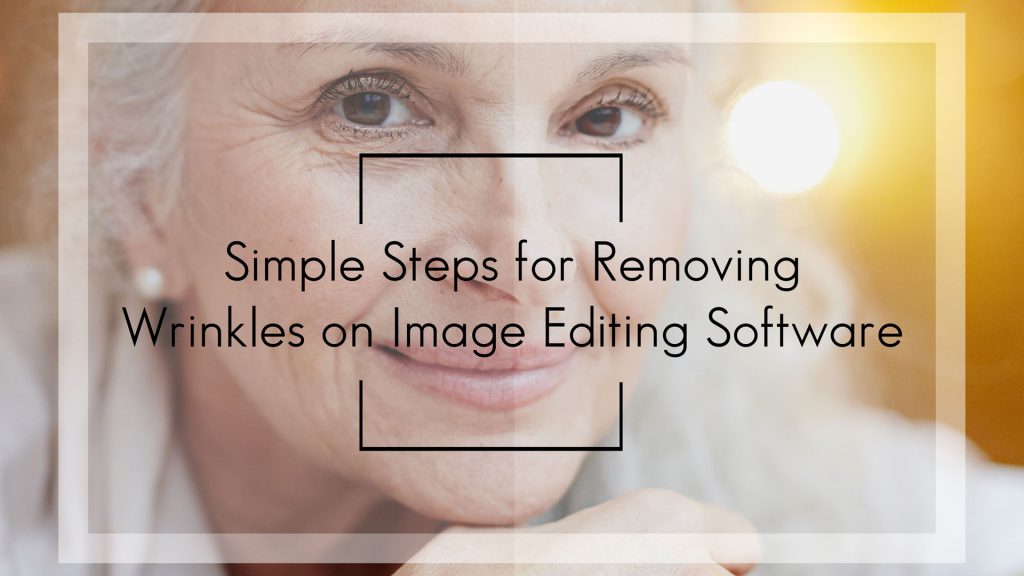
In the world of photography, whether for eCommerce, branding, or personal portraits, image quality can make or break the viewer’s first impression. One common challenge photographers and editors face is dealing with wrinkles, which can appear on both skin and clothing. These imperfections may form naturally over time due to factors such as aging, sun exposure, repetitive facial expressions, or improper garment storage.
While wrinkles are a regular part of life, they can sometimes distract from the main subject in a photo. In product photography, fabric creases may make clothing look worn or unappealing. In portraits, facial wrinkles might draw attention away from the eyes, smile, or other defining features. That’s where removing wrinkles with editing software comes in, helping you achieve smooth, polished visuals without losing authenticity.
If you’ve already tried skincare routines, anti-aging creams, or ironing clothes before a shoot but still notice wrinkles in your photos, don’t worry. Modern editing software such as Adobe Photoshop, Lightroom, and GIMP offers multiple tools and techniques for wrinkle removal. Here are seven powerful methods for removing wrinkles while maintaining a natural and professional appearance.
1. Why Removing Wrinkles Matters
When it comes to photography, details matter. Wrinkles, whether on a person’s face or an outfit, can become the first thing viewers notice. For example:
- In portraits, deep lines might unintentionally make the subject look tired or older than intended.
- In fashion photography, clothing wrinkles can make even expensive garments look cheap.
- In product photos, fabric creases can suggest poor quality or mishandling.
Removing wrinkles doesn’t mean erasing personality or authenticity; it’s about creating a clean, polished presentation. A wrinkle-free photo gives a more professional, appealing, and trustworthy impression, increasing the chance of capturing attention in competitive markets.
2. Use the Clone Stamp Tool
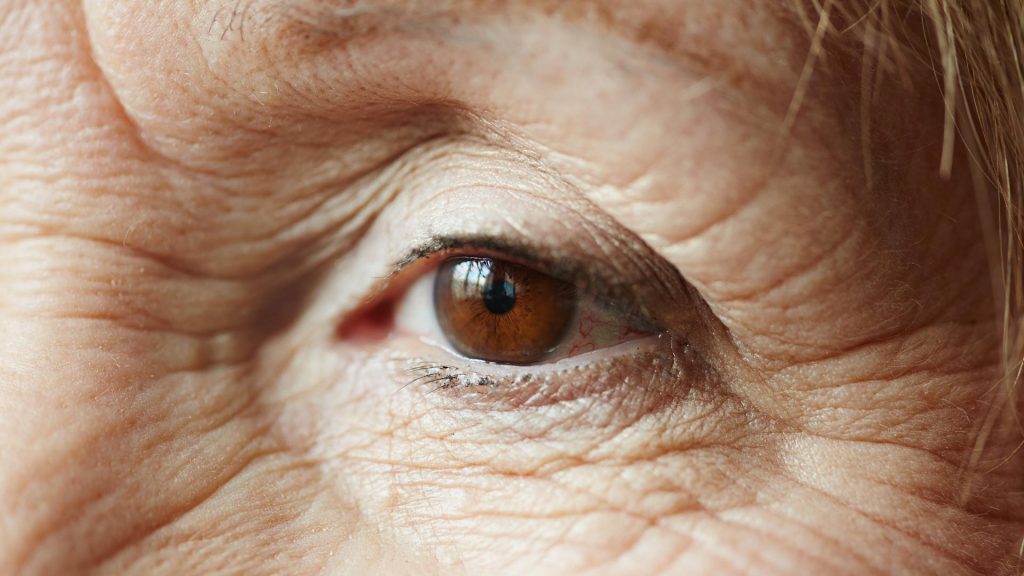
This method is perfect for reducing fine lines and keeping natural skin texture.
Steps:
-
Duplicate background layer (Ctrl/Cmd + J)
-
Select the Clone Stamp Tool
-
Set mode to “Lighten.”
-
Sample a nearby area
-
Gently paint over the wrinkle area

This technique works great on facial wrinkles, clothing creases, and even surface imperfections.
3. Try the Healing Brush Tool
If you’re working with skin or softer textures, the Healing Brush Tool is your best friend. Unlike the Clone Stamp, it blends the sampled area with the target, creating a seamless transition.
Pro Tip:
- Use a soft brush with low hardness to avoid harsh edges.
- Reduce opacity for subtle blending, especially under the eyes or on delicate fabrics.
The Healing Brush works well for smile lines, crow’s feet, or wrinkles in lightweight clothing.
4. Apply the Dust & Scratches Filter
Great for softening wrinkles or texture on apparel.
Steps:
- Duplicate your layer
- Go to Filter > Noise > Dust & Scratches
- Adjust the Radius and Threshold carefully
Use a mask to apply this effect only on the necessary areas to maintain realism.
5. Frequency Separation Technique (Advanced)
Suppose you’re looking for high-end, magazine-quality results. In that case, Frequency Separation is an advanced technique that separates an image into texture and color/tone layers. It allows you to smooth out tones while preserving realistic textures, such as skin pores or the weave of fabric.
Advantages:
- Maintains natural skin or fabric detail.
- Provides precise control over the editing process.
While it has a steeper learning curve, frequency separation is a go-to method for professional retouchers aiming for flawless yet natural results.
6. Don’t Overdo It
Too much editing can make faces or fabrics look fake. Always zoom out to review your results and compare before and after. Aim for natural, not flawless.
7. Hire Professional Retouchers (Like Dropicts!)
If you don’t have the time, tools, or technical skills, hiring a professional service can save you hours of work. At Dropicts, we specialize in removing wrinkles, both on skin and clothing, as well as blemish correction, background cleanup, and other advanced edits.
We work with eCommerce businesses, photographers, and brands worldwide, delivering high-quality, realistic results while respecting privacy and deadlines.
Final Thoughts
Removing wrinkles is more than just a cosmetic step; it’s about presenting your images in the best possible light. Whether for product catalogs, social media, advertisements, or personal portraits, clean visuals help you stand out in a crowded marketplace.
By using the right tools, such as Clone Stamp, Healing Brush, Dust & Scratches Filter, or Frequency Separation, you can smooth wrinkles while preserving natural textures intact. And when in doubt, a professional retoucher can handle the work for you, ensuring your photos are polished, impactful, and brand-ready.
Image source:
