
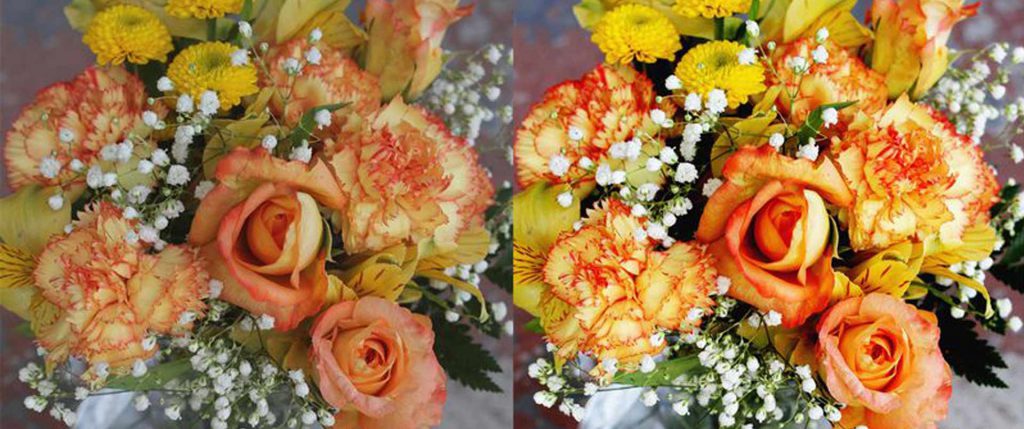
In the world of photography, color is one of the most powerful elements that can completely change how a viewer feels about an image. Sometimes we come across a picture with powerful color—intense, vivid, and full of life—that instantly captures our attention. These kinds of images can evoke emotions, tell a story, and make a lasting impression. But the question is, how can you achieve that vibrant and impactful look in your photos?
Fortunately, there are quick and effective methods you can use to make your images stand out. You can either edit them yourself using a photo editing tool like Adobe Photoshop, or you can use a professional image editing service such as Dropicts, which specializes in transforming dull photos into stunning, colorful works of art.
If you’re looking for a hands-on approach, editing with tools like Photoshop Elements allows you to control every aspect of the color and light in your photo. This guide will walk you through a simple yet effective technique to enhance your pictures and create a powerful color effect.

Meanwhile, let’s reveal the popping image color with special equipment, such as Photoshop, first. With the skill, you may create the perfect color combinations. This tutorial will use Adobe Photoshop Elements, which we assume you are used to. This technique can save your photo from being dull and poor. So, let’s check it out.
4 Steps to Make Your Image “Pop”
1. Open Your Image

To edit an image, you must open it first. Open your image with Photoshop Elements. After that, choose the layer option which is located on the top page. There are some choices, and the next step is to select and press the duplicate layer.
2. Open the Layer Menu

After duplicating a layer, open the layer menu placed in the bottom right corner. Then, select the screen, and your image becomes brighter. If your photo was taken in low light, you may brighten it first. If your image is too bright, reduce it with Opacity. Next, flatten the photo by pressing ‘Flatten Image’ in the layer menu.
3. Doubled Your Layer

Duplicate your layer, then select Soft Light from the Layer menu. This layer will directly give you vibrant and powerful color in your photo. You reduce the Opacity at this time if you feel it is too much. Or, you may try Hard light if the image color wasn’t enough. You can add some personal touches at this point by repeating it.
4. Adjusting Image Level

At last, adjusting the color image level is the final session about editing a photo. You can open this feature by pressing the command button with the ‘L’ key at the same time. You will see the graphic level that represents your photo. Moving an arrow under the graph will adjust the level, left to make darker, right to make brighter, and middle is midtone.
It can be tricky if you don’t have any idea how to use Photoshop Elements. For a simple result, you may want to try an image editor such as Dropicts.
We will give you the benefit of enjoying your time without doing things that you haven’t mastered. It is wiser to leave it to dropicts as your professional photo editing services editor.

Image Courtesy:
abeautifulmess.com
